Categories
The Categories tab is where you decide which PrestaShop categories are synchronised with Octopia and which profile applies to each one. It's the bridge between your catalog and the rule sets you built in the Profiles tab.
Map your PrestaShop categories to Octopia profiles: check a category to activate it for synchronisation, then select the profile to apply. Each category has its own independent profile, and only checked categories are synchronised with Octopia.
Create your profiles first
The profile dropdown lists the profiles of the active account. If it's empty, go to the Profiles tab and create at least one — a profile also requires a model, so the full chain is Model → Profile → Category.
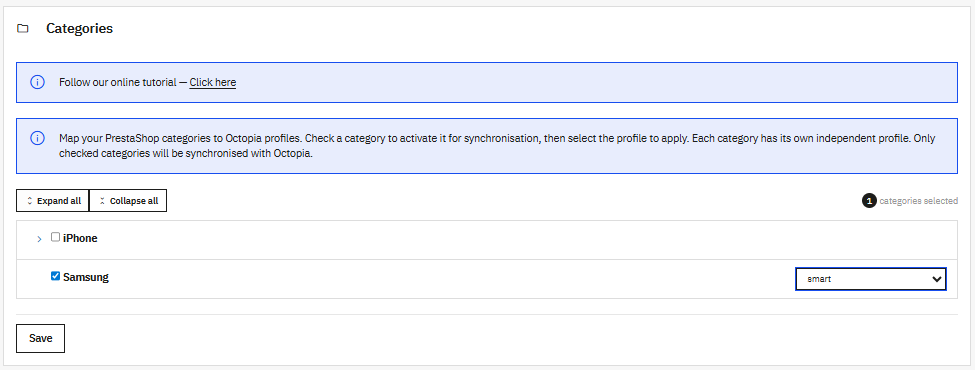
Activating and mapping a category
The category tree mirrors your PrestaShop catalog. Use Expand all / Collapse all to navigate large trees, and the categories selected counter tells you how many are active.
For each category you want to publish:
- Tick the checkbox to activate it for synchronisation.
- Choose a profile in the dropdown that appears next to it.
Points to keep in mind:
- Independent per category — each category carries its own profile. Two sibling categories can use two different profiles, and a category isn't forced to match its parent.
- Only checked categories sync — an unchecked category (and any product that resolves only to unchecked categories) produces no offer. Checking a category is what puts its products in scope.
- Not recursive by default — checking a parent doesn't automatically check its children; tick each category you actually want to publish.
How a product picks up its category
At export, a product resolves to a profile through its category — the resolution order is detailed in Profiles → How a product picks up a profile: a pinned category on the product override first, then the closest checked ancestor of the product's default category, then any other checked category it belongs to. If a product belongs to several checked categories with different profiles, you can pin the one to use from the product's override.
Save
Click Save to store your category → profile mapping for the active account. Like models and profiles, this mapping is scoped to the active account — switch account and the tree reloads with that account's selections.
Next step
Product overrides — fine-tune price, stock, preparation time or the resolved category on individual products, then publish from Products & Offers.