Profiles
A profile is a reusable set of commercial and logistics rules applied to your offers: pricing rules, competitive alignment, strikethrough price, per-carrier shipping costs, stock safety, preparation time, eco-taxes, packaging, CDaV eligibility, and the PrestaShop → Cdiscount condition mapping.
A profile never works alone — it sits on top of a model and is applied to your products through the Categories tab:
- The Model defines the structure: the Octopia category and how each specific field is filled.
- The Profile adds the business rules (price, shipping, stock, eco-taxes…) on top of that structure.
- The Categories tab connects everything: you map a PrestaShop category to a profile, and every product in that category inherits it.
The chain, end to end
Product → its mapped category → the profile attached to it → the profile's model. At export, the offer's price, shipping and conditions come from the profile; the product/offer structure comes from the model. A product with no mapped category (directly or through a parent) produces no offer.
Adding a profile
The Add a profile form is at the top of the tab, in the same order as below. Fields marked with an asterisk are required.
Name, model & comments
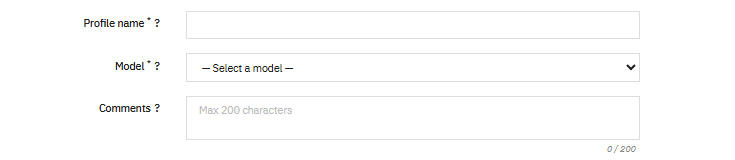
- Profile name * — a clear business label (e.g. Camera > Premium, Home > Low margin). This is exactly what you'll pick later in the Categories tab, so name it for the use case, not the category.
- Model * — the model this profile exports with. The model sets the Octopia category; the profile layers rules on top. One model can back many profiles (e.g. a Premium and a Low margin profile on the same category).
- Comments — a note displayed on the product page on Cdiscount/Octopia (warranty, legal or safety notices…), 200 characters max.
Pricing
- Price rule — a price engine by range. For each Min/Max bracket, apply a percentage or a fixed value change; positive raises the price, negative lowers it. During export the bracket matching the product's price is applied. Add as many ranges as you need.
- Strikethrough price — the crossed-out comparison price shown on the marketplace. Percentage: set this % above the final price. Value: add this amount to the final price. Cdiscount favours offers that display a strikethrough price and gives them extra visibility. A per-product override always wins over this. Leave empty to disable.
- Price alignment — competitive alignment: Octopia may adjust your price toward the lowest competitor, within margins you set. Min is the maximum it may deduct; Max the maximum it may add. With Percentage the margins are computed on your TTC price; with Value they are fixed euro amounts. Leave empty to disable.
Preparation time & shipping

- Preparation time (days) — default handling time applied to all delivery modes. Falls back to the global value from Settings when left empty, and can be overridden per product in Product overrides.
- Shipping costs — the shipping cost and additional charge per carrier (Octopia mode), applied only to offers using this profile. The list of modes comes from the Transport tab — activate your delivery modes there first, otherwise this section is empty. Inherit keeps the value defined in Transport.
Stock, CDaV, eco-taxes & packaging
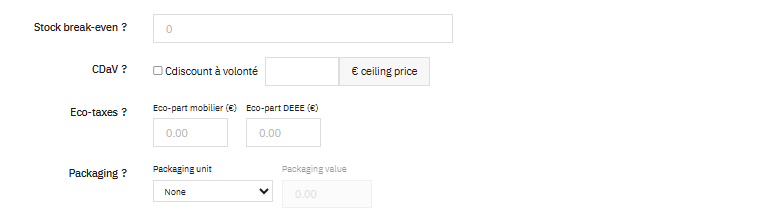
- Stock break-even — a stock safety offset applied at export. Negative keeps a buffer (publish less than real stock), positive publishes more. Example:
-1publishes one unit less than the real stock. Can be overridden per product. - CDaV — enable Cdiscount à volonté eligibility. An offer is flagged CDaV only when this is enabled and the final price is at or below the ceiling price you set.
- Eco-taxes — Eco-part mobilier and Eco-part DEEE (in €), included in the TTC offer price. Apply only to eligible categories (electronics, furniture, DEEE).
- Packaging — the packaging unit (Liter, Kilogram, SquareMeter, CubicMeter, Piece) and its value (e.g. Liter + 1.5 for a 1.5 L bottle). Choose None when the product isn't sold by a measurable unit.
Condition mapping (required)

Map each PrestaShop product condition (New, Used, Refurbished…) to the matching Cdiscount condition code. This is used when publishing offers on Cdiscount (CDISFR). A condition left Not mapped means products in that condition won't carry a Cdiscount condition.
Per-product overrides always win
A profile sets the defaults for a whole category, but several values can be overridden on a single product in the Product overrides tab: the final/strikethrough price, preparation time, stock, and even the category used to resolve the profile (pinning). Whenever an override exists, it takes precedence over the profile.
Save
Click Save. The profile joins the Saved profiles list below, ready to be attached to categories.
Saved profiles

Your profiles for the active account are listed at the bottom, with Edit and Delete. Deleting a profile that is still attached to a category is refused — reassign or clear those categories in the Categories tab first.
Profiles belong to the active account
Like models, profiles are scoped to the active account. Switch account and the list reloads with that account's profiles. (The features/attributes created from a model are the exception — those are shared across accounts; see Models.)
How a product picks up a profile
At export the module resolves the profile like this:
- A pinned category on the product's override, if any.
- Otherwise, the closest mapped ancestor of the product's default category.
- Otherwise, any other mapped category the product belongs to.
If none of these finds a mapped category, the product produces no offer (reported as no profile assigned). When a product sits under several mapped categories pointing to different profiles, the closest-ancestor rule picks one deterministically and the preview flags the ambiguity so you can pin the category you want (stored on the product override).
Next step
Categories — map your PrestaShop categories to the profiles you just created, so your products inherit the right rule set.