Connection & account
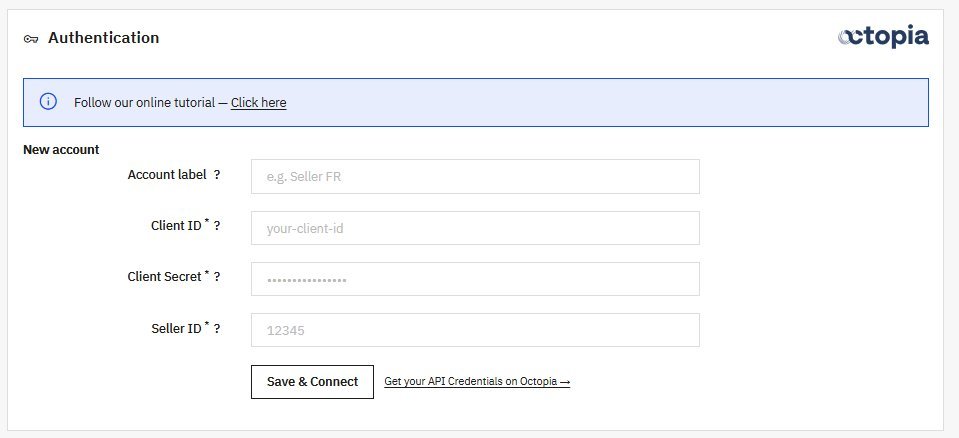
Before Octopia Sync can send your catalog or import orders, it needs to talk to your Octopia seller account. You set this up once, in the Authentication screen under Configuration — and the module stays Not configured until it's done.
What you need first
The connection relies on three credentials issued by Octopia. You don't create them in the module — you collect them from Octopia first:
- No seller account yet? Start your registration on Cdiscount Marketplace. Octopia powers the Cdiscount marketplace and its partner network, so that's where a seller account begins.
- Account already active? Generate your API keys by following the Octopia API credentials guide.
Keep the three values within reach before opening the screen.
Filling in the screen
Account label — a free name, just for you, to recognise this account inside the module (for example Seller FR). It has no effect on Octopia and only really matters once you manage several accounts.
Client ID and Client Secret — the OAuth2 key pair Octopia gives you. Think of them as the login and password the module uses to authenticate on its own, in the background.
Seller ID — your numeric Octopia seller number. It identifies which seller account the offers and orders belong to.
Once everything is filled in, click Save & Connect.
What happens when you connect
The module doesn't blindly store what you typed. It first opens a test connection to Octopia:
- If the credentials are valid, the account is saved, the status flips to Connected, and you can move on to the rest of the configuration.
- If they're rejected, nothing is saved — you stay on the screen with an error explaining what went wrong, usually a wrong key or a seller account that isn't active yet.
Once saved, your keys are encrypted in the database, and the access token the module needs is fetched and renewed automatically. You never have to paste a token or reconnect by hand.
The Seller ID is fixed afterwards
A seller account is tied to its Seller ID, so it can't be edited later. To connect a different seller, add a new account rather than changing this one.
Working with several accounts
You can connect more than one Octopia account on the same shop — handy if you sell under several brands or seller accounts. One account is active at a time per shop, and each keeps its own categories, profiles, carriers and settings, so switching the active account switches the whole configuration with it.
Next step
Settings — tune how the module exports your catalog and imports your orders.